Check it works
Three quick checks after you install. Restart your editors first.
-
Open the status page. Go to
http://127.0.0.1:47231/in your browser. It’s served by the agent on your own computer, so it works only there. Look for Signed in: yes.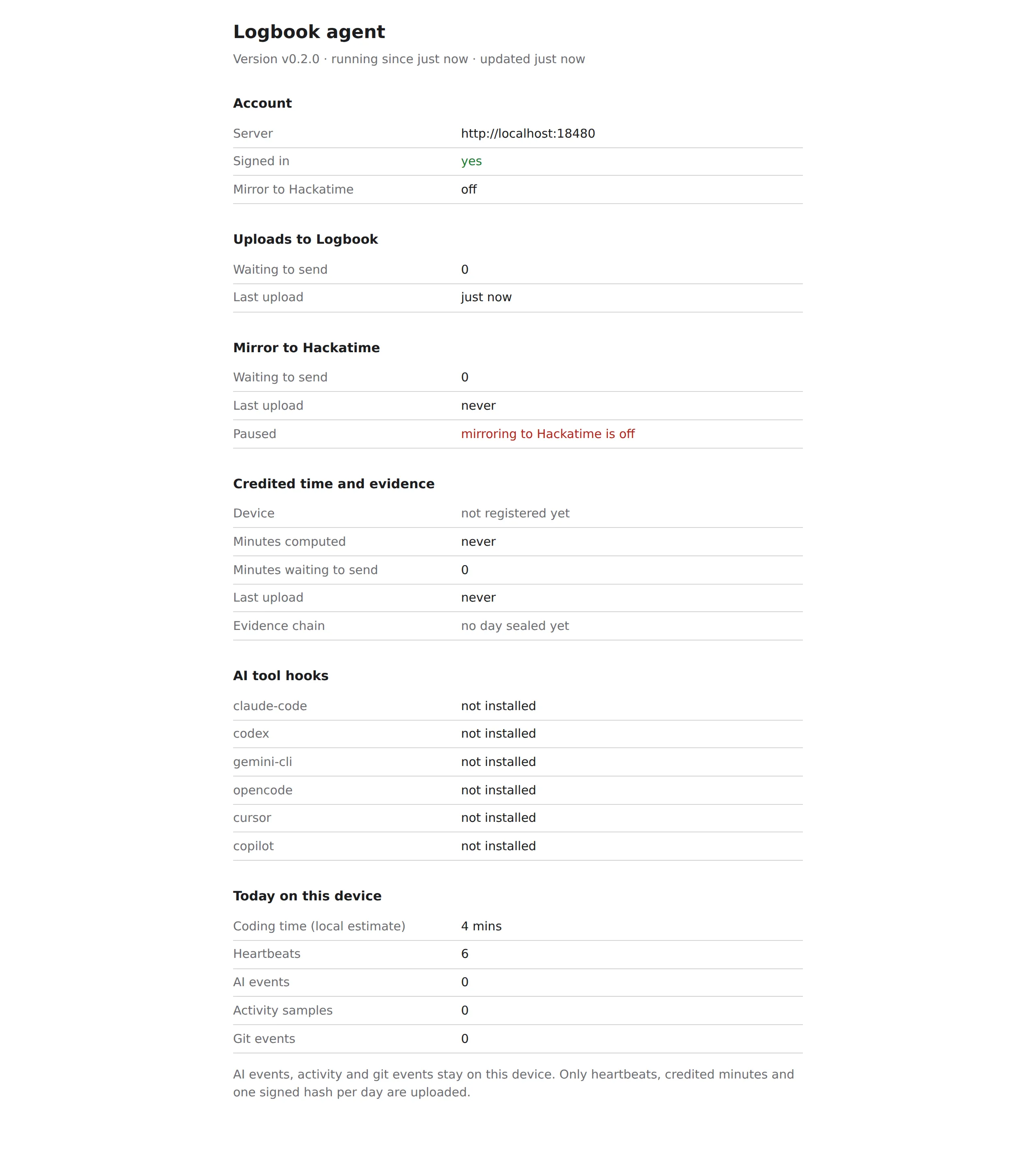
-
Run
logbook status.Terminal window & "$env:LOCALAPPDATA\Programs\Logbook\logbook.exe" status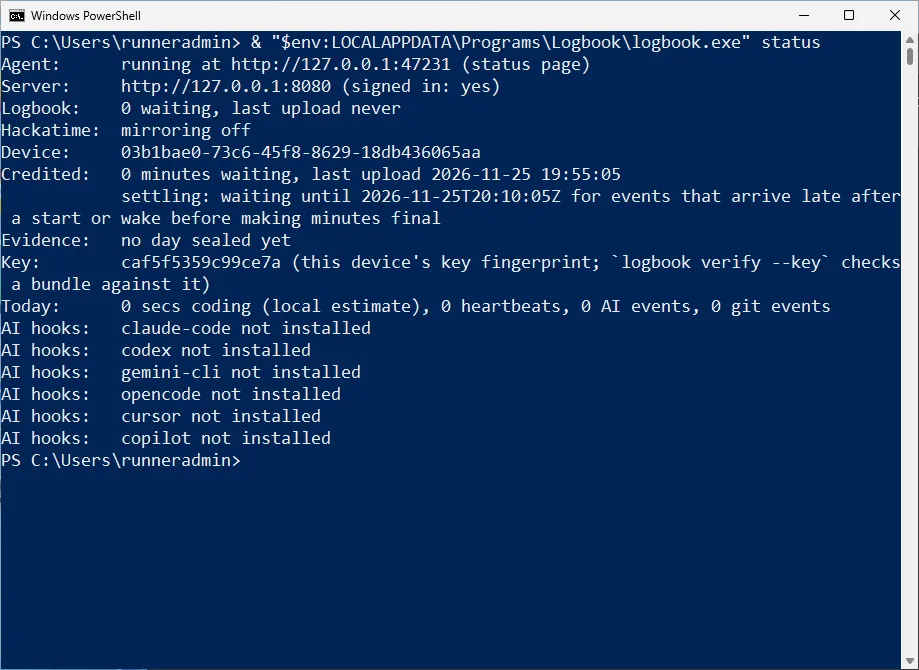
The macOS screenshots below were captured on a GitHub runner after a test workaround for the installer failure. They show the commands after setup; they do not demonstrate a successful unmodified install.
Terminal window "$HOME/Library/Application Support/Logbook/bin/logbook" status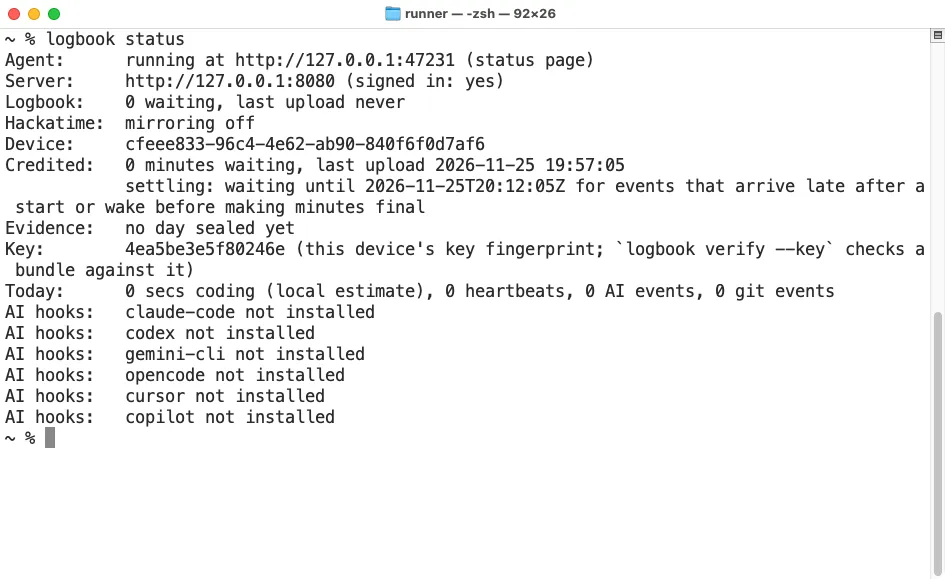
Terminal window ~/.local/bin/logbook statusYou want
Agent: runningandsigned in: yes. Right after a start, asettlingline says the agent waits about 15 minutes before it makes minutes final. That’s normal. -
Run
logbook doctor. It checks your setup and prints a fix for anything wrong.Terminal window & "$env:LOCALAPPDATA\Programs\Logbook\logbook.exe" doctor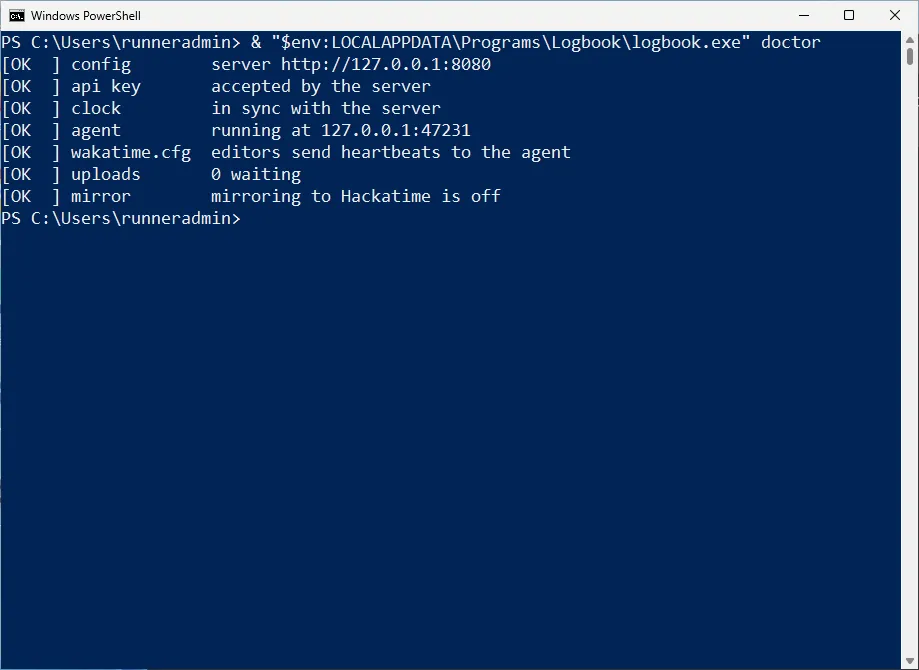
The macOS screenshots below were captured on a GitHub runner after a test workaround for the installer failure. They show the commands after setup; they do not demonstrate a successful unmodified install.
Terminal window "$HOME/Library/Application Support/Logbook/bin/logbook" doctor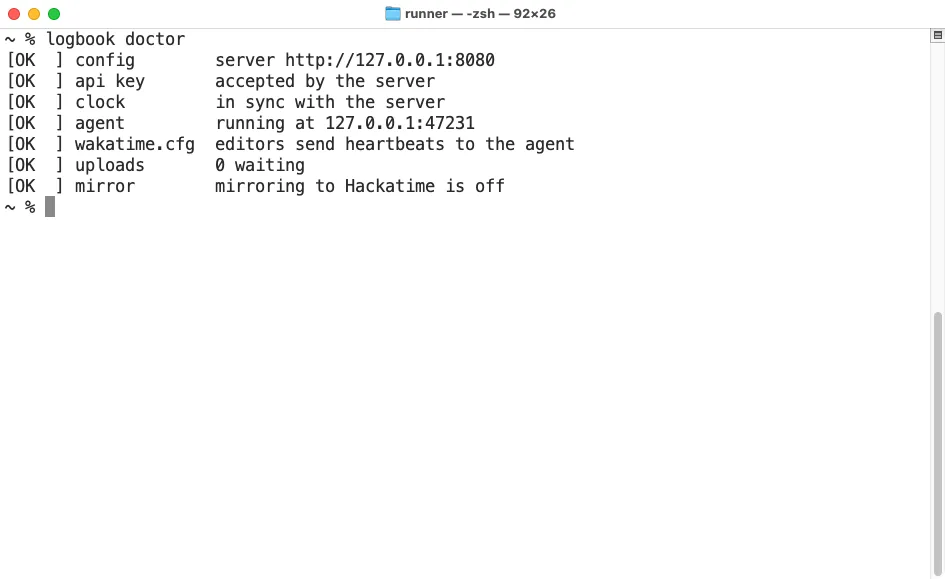
Terminal window ~/.local/bin/logbook doctor
How to tell it worked
Section titled “How to tell it worked”- Every
logbook doctorline starts with[OK ]. - Edit a file for a minute or two. On the status page, Heartbeats under Today on this device goes up.
- Open logbook.boogles.dev. Counted time shows up under Today a few minutes after you start working.
If a check fails, do what logbook doctor says, or see Troubleshooting.